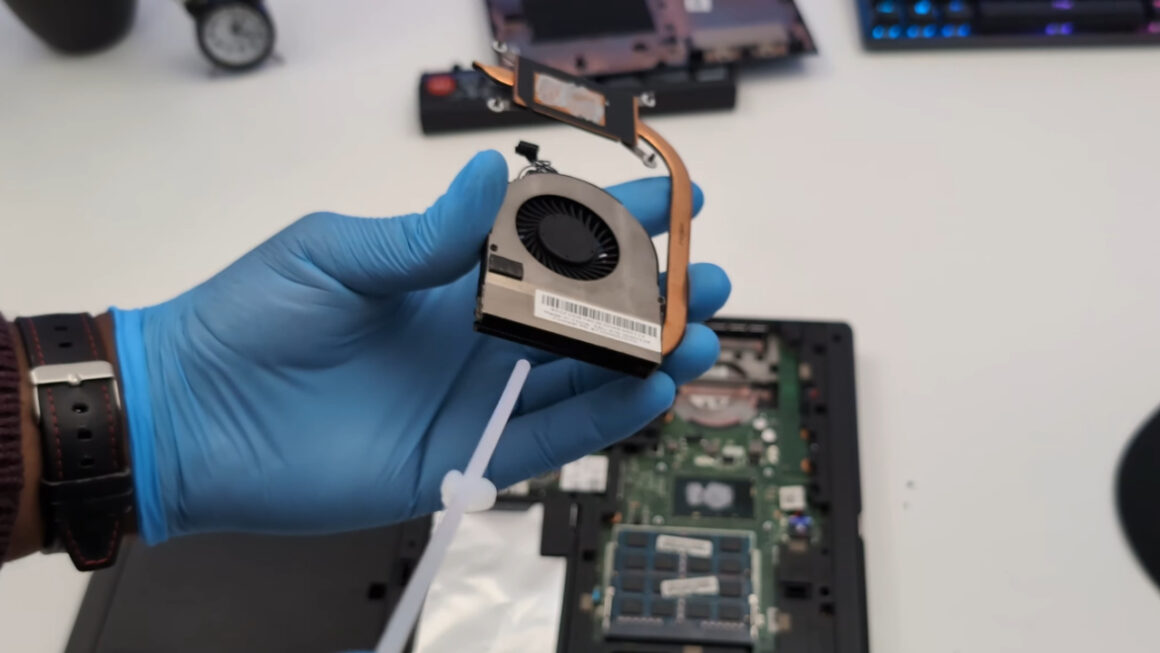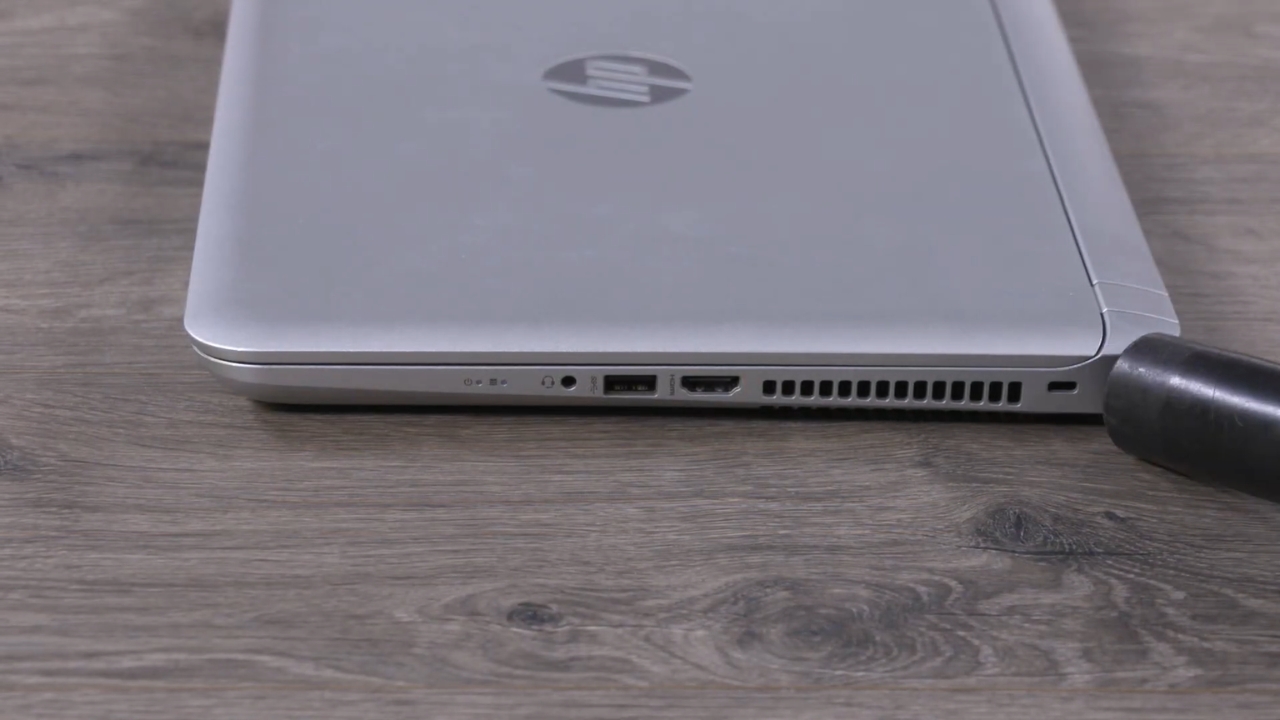
I notice laptop fans in coffee shops, which is not a hobby I recommend. The loudest machine in the room is rarely rendering video. Usually its owner is answering emails.
When a fan works that hard over light tasks, dust is the usual reason. Air passes through the intake, across the fan, and through a stack of thin metal fins before leaving through the exhaust. Lint settles on those fins, and the fan spins faster to push the same heat out.
A ten-minute outside cleaning costs nothing and fixes plenty of loud laptops. If yours stays hot afterward, the dust sits deeper, or a part has started to fail.
What Dust Does Inside a Laptop Cooling System
In most laptops, heat pipes carry warmth from the chip to a block of metal fins, and a small fan pushes air through the fins and out the exhaust vent.
The gaps between those fins are narrow, so lint, pet hair, and fabric fibers catch there first. Over months, the debris forms a gray felt layer on the side facing the fan. Dust never receives an invitation, yet it always finds the one gap the fan depends on.
Intel explains in its processor temperature guidance that a chip reaching its maximum junction temperature, usually between 212°F and 230°F (100°C to 110°C), reduces power and frequency to cool itself. If throttling is not enough, the processor shuts down to prevent permanent damage.
Thermal throttling is the technical name for that protective slowdown.
The Signs That Usually Point to Dust
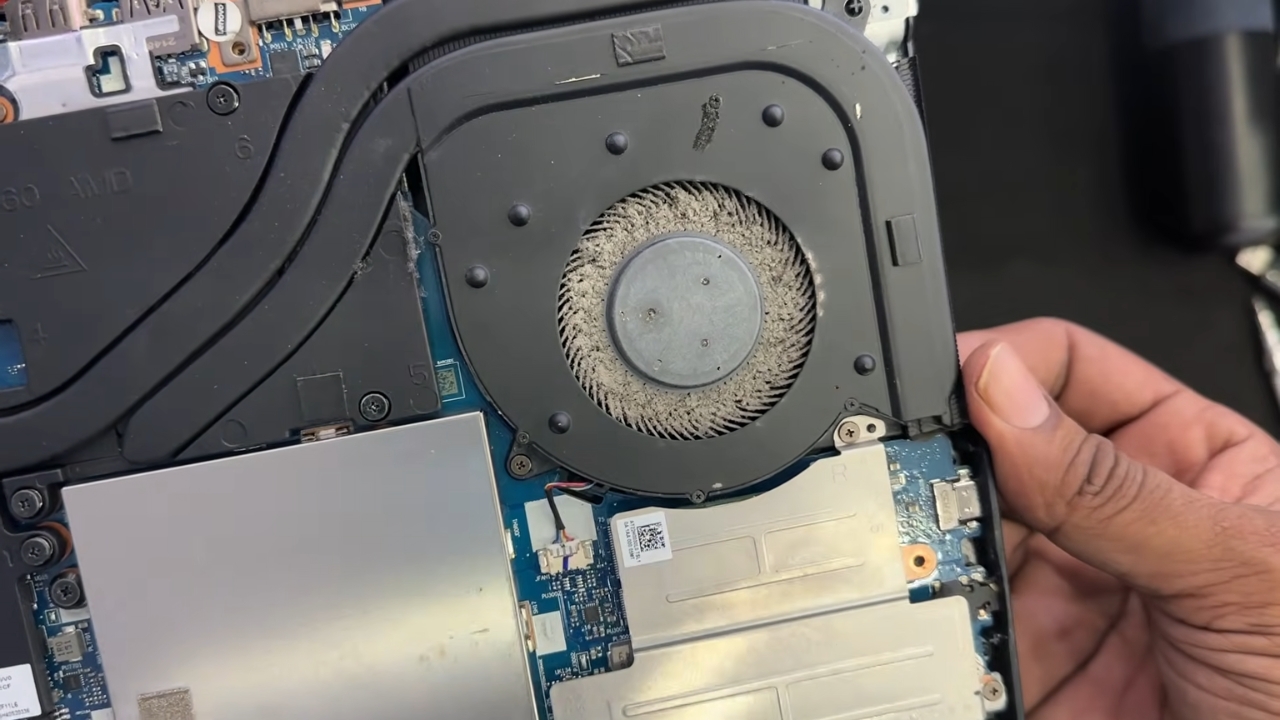
I can hear an unhappy laptop fan from across a quiet room, and dust has a recognizable pattern. The fan ramps up quickly during light work and stays loud long after the task ends.
Watch for a combination of the following.
- The fan runs loudly while you browse, write, or stream video.
- Air from the exhaust vent feels weak, even though the fan is clearly spinning.
- The bottom case near the vents feels hotter than it did a year ago.
- Performance drops after a few minutes of steady work, then recovers once the laptop rests.
- Gray fuzz is visible through the vent grille when you shine a flashlight into it.
One sign alone proves very little. Two or three signs together, especially weak exhaust airflow, make dust the first suspect.
What I Keep Within Reach Before Cleaning
My precision screwdriver kit sits within arm’s reach of my desk, so a vent check never turns into a hunt for tools. For an outside cleaning, however, you need very little, and none of it is expensive.
- A soft, clean brush, such as a small paintbrush or an anti-static brush
- A can of compressed air sold for electronics
- A microfiber cloth for the case and the edges of the grille
- A wooden toothpick or plastic pry tool to hold the fan still
Leave the household vacuum in the closet. Dell warns in its guide to troubleshooting laptop fan issues that vacuums can generate static electricity that may damage components. A hair dryer is also a poor choice, because it pushes warm air into parts you are trying to cool.
How to Clean Laptop Vents From the Outside
View this post on Instagram
Dell recommends powering off and unplugging the laptop before any cleaning, and its laptop care guide suggests compressed air for clearing vents. The steps below add details that protect the fan.
- Shut the laptop down fully, unplug the charger, and let it cool for ten minutes.
- Find the intake, usually on the bottom, and the exhaust, usually on a side or near the hinge.
- Brush loose lint off both grilles first.
- Hold the fan blades still through the grille with a toothpick, if you can reach them.
- Keep the can upright and use one or two second bursts from about 6 inches away, starting at the exhaust.
- Wipe the grille edges and check the exhaust with a flashlight.
Short bursts matter because a fan spun far past its normal speed can wear its bearing. Starting at the exhaust pushes debris back toward the fan instead of deeper into the fins.
Canned Air Deserves More Respect Than It Gets
Canned air is not really air. Most dusters contain a liquefied gas that turns into vapor as it leaves the nozzle, which is why the can turns cold in your hand.
Tip the can, and the nozzle can spray liquid propellant onto the fan, the fins, or your fingers.
A safety data sheet for one common duster, published by the University of Waterloo, tells users to keep the can upright and avoid spraying past 45 degrees from vertical. The sheet classifies the product as a flammable aerosol, warns that liquid contact can cause frostbite, and states that the container may erupt above 122°F.
Use it in a ventilated room, away from flames and hot surfaces, and never store it in a parked car during summer. The vapor is heavier than air and should never be inhaled on purpose.
How I Check Whether the Cleaning Worked
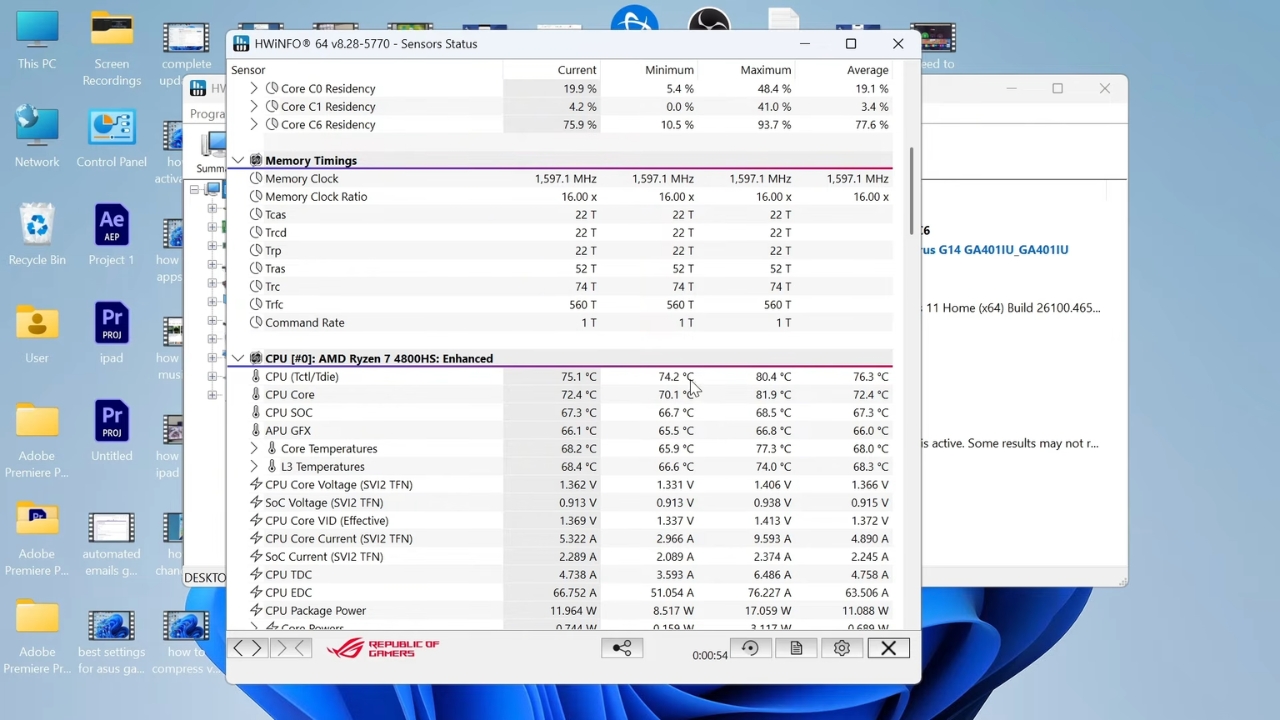
I check processor temperatures after major software updates, partly from curiosity and partly because it gives me a baseline. A baseline is the useful part here, since a single reading without one tells you very little.
After cleaning, let the laptop idle for a few minutes, then repeat the task that used to make it loud. Listen for a fan that ramps up more slowly and settles sooner. Feel the exhaust too, since stronger airflow shows the path is open.
On Windows, Task Manager shows whether a program is quietly holding the processor busy, and free monitoring tools display temperatures.
Did you know? Apple advises using its Mac laptops in rooms between 50°F and 95°F. A warm room shrinks the cooling margin before dust even enters the picture.
When Dust Is Only Part of the Problem
Cleaning fixes airflow. It cannot repair a worn fan or a chip that no longer passes heat into its cooler. The symptoms usually point to the real cause.
| What you notice | Likely cause | Will vent cleaning help? |
| Loud fan during light work, weak exhaust | Dust on the fins or intake | Often yes |
| Heat spikes within a minute of load, strong airflow | Dried thermal paste or poor heatsink contact | No |
| Grinding, clicking, or rattling | Worn fan bearing | Rarely |
| Hot and loud at idle | Background software load | No |
| Steady high-pitched electrical whine | Coil whine | No |
Thermal paste is the gray compound between the processor and the heatsink. It fills tiny gaps so heat crosses into the metal, and it dries out over years. Fans are moving parts too, which is why they appear among the laptop components that usually fail first.
When to Open the Bottom Panel and When to Stop
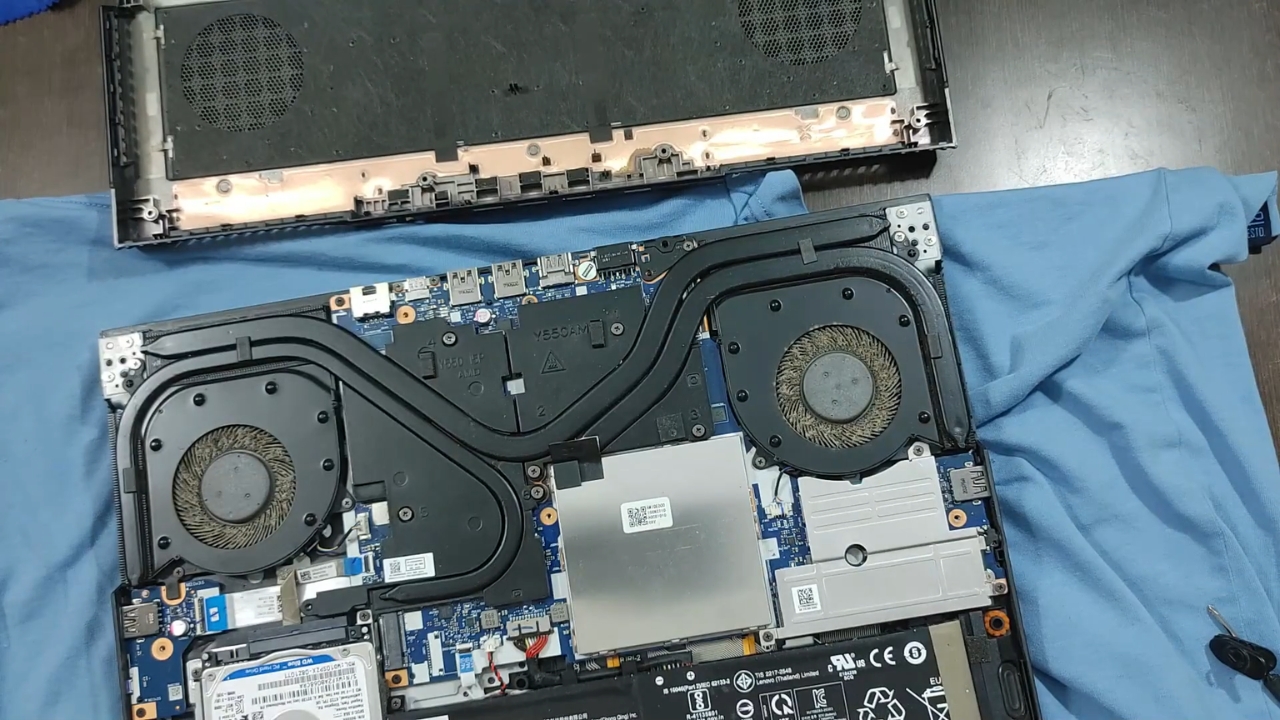
If the outside cleaning changes nothing, dust is probably packed against the inner face of the fins, where air from outside barely reaches. Removing the bottom panel exposes it, but check your warranty first. Many manufacturers publish service manuals showing hidden screws and plastic clips.
For a closer look at the fan itself, follow my guide on how to clean a laptop fan safely before you open the case.
Laptop screws come in different lengths, and a long screw in the wrong hole can damage the board underneath. I keep removed screws in labeled containers, the same habit behind my bins of old adapters and RAM sticks. A paper sketch with each screw taped in place works just as well.
Stop and hand the laptop to a technician if you smell burning, the fan refuses to spin, or the battery looks puffy. A swollen battery that lifts the trackpad should never be pressed, punctured, or forced back into shape.
Keeping the Dust Out Next Time
How fast dust returns depends on where the laptop lives. A machine on a clean desk collects far less than one sharing a couch with a shedding dog.
- Check the vents every few months, and more often with pets, carpet, smokers, or a dusty workshop.
- Keep the laptop on a hard, flat surface, never on a bed, pillow, or blanket that can cover the intake.
- Clean the keyboard in the same session, since the grime hiding under laptop keys comes from the same room.
If you use one of the best laptop screen extenders, leave the exhaust vents clear and use a stable desk setup that supports the extra screen weight.
I never put a laptop directly on a duvet, and I quietly judge anyone who does. A duvet blocks the intake and feeds it lint at the same time, which is an impressive amount of damage for something so comfortable.
The Note Worth Writing Before You Clean
@pcrevolutionph Nothing beats the satisfaction of a good laptop deep clean. Watch us blast away years of dust, clean out those fans, and apply fresh thermal paste. Say goodbye to thermal throttling and hello to smooth, quiet performance! 📷 Does your laptop need this treatment? Let us know in the comments! 📷 #fypシ゚ #fypppppppppppppp #foryoupage ♬ original sound – PC Revolution
Start with the outside. Ten minutes with a brush, short bursts of air, and a held fan solve a large share of loud fans during light work. If the laptop still heats up within a minute of load, or the fan grinds, cleaning has done its part, and the next step is fresh paste, a new fan, or a technician.
Before you pick up the can, write down how the fan sounds and how warm the case feels. Compare the same task afterward. That small note is the most useful diagnostic tool you will own, and unlike my USB cable collection, it takes up no drawer space.