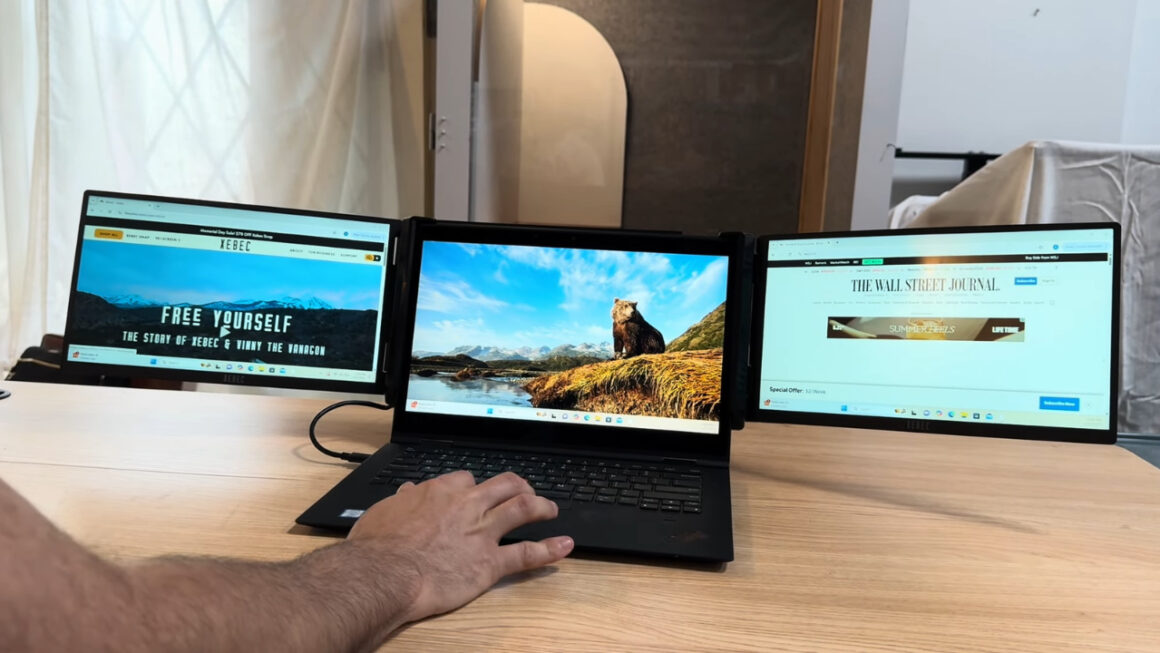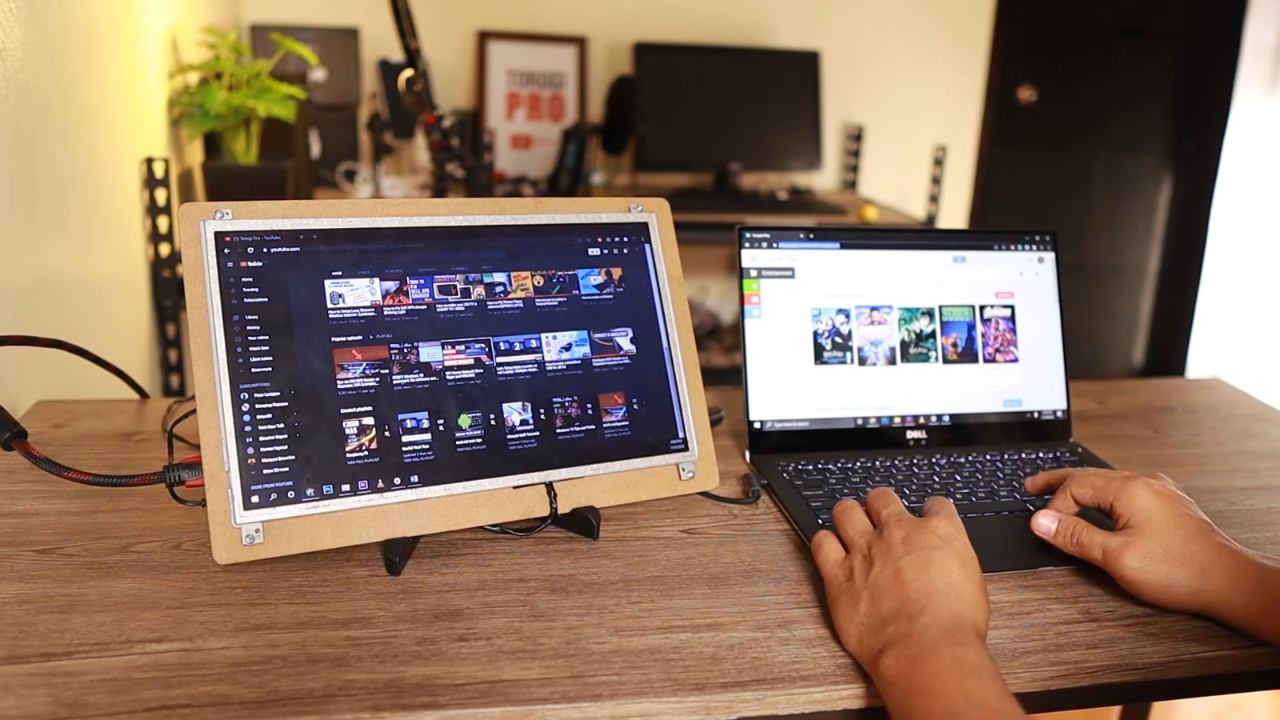
The laptop powers on, the fans spin, and the keyboard lights up, yet the built-in display stays black. Plug in a TV or monitor, though, and Windows appears there as if nothing happened. That combination looks alarming, but it carries good news.
The processor, memory, storage, and graphics chip are working, because they are drawing the desktop on the other display. What failed sits between the motherboard and the laptop screen, or it is a setting pretending to be a hardware fault. Below, we walk through how to tell which, in the order we would check.
What a Working External Monitor Tells You
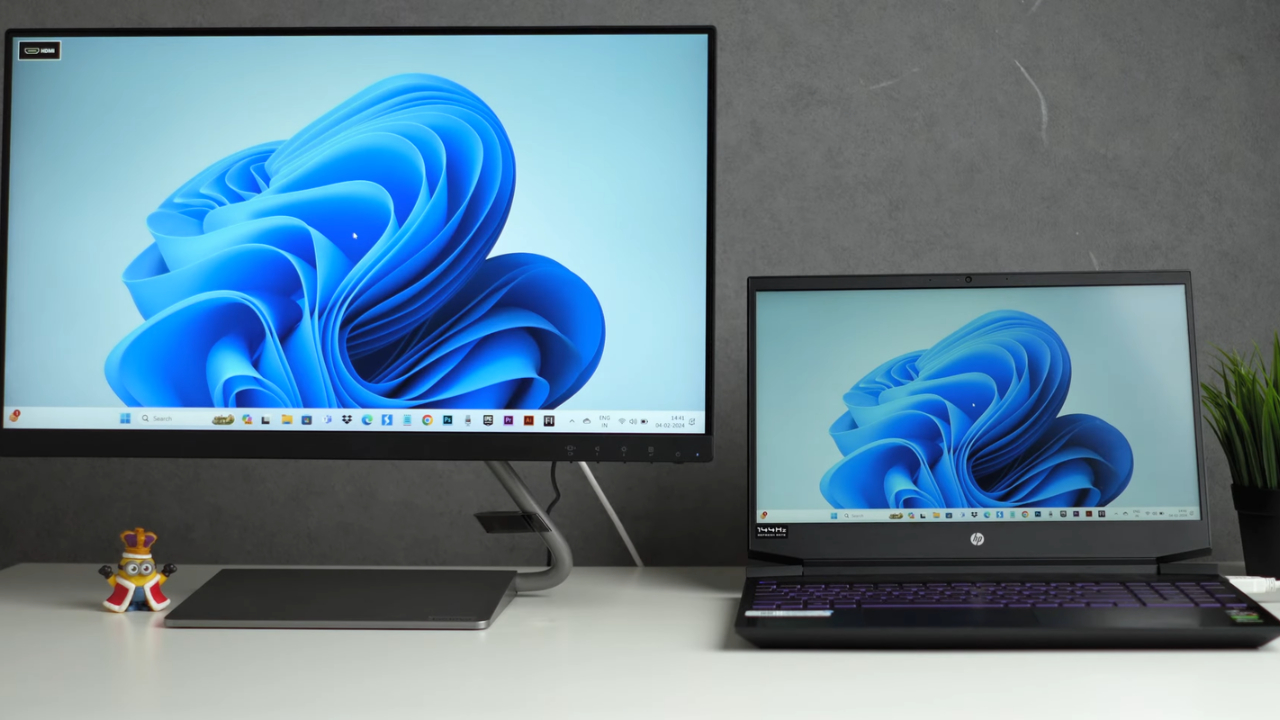
An external display is the most useful diagnostic tool most people already own. If the desktop shows up there, the laptop has passed its power-on checks, loaded the operating system, and produced video.
The signal for the laptop screen takes a different route. A thin cable leaves the motherboard, passes through the hinge, and reaches the panel, where an LCD layer forms the image and a separate backlight shines through it.
Embedded DisplayPort (eDP) is the interface linking the graphics hardware in a laptop to its own screen. VESA, the standards group that publishes eDP, says it is used in virtually all laptops and premium tablets.
So the suspects are that cable, the backlight, the panel, or the software deciding where the picture goes. Each one leaves a slightly different clue.
Rule Out the Settings Before Suspecting Hardware
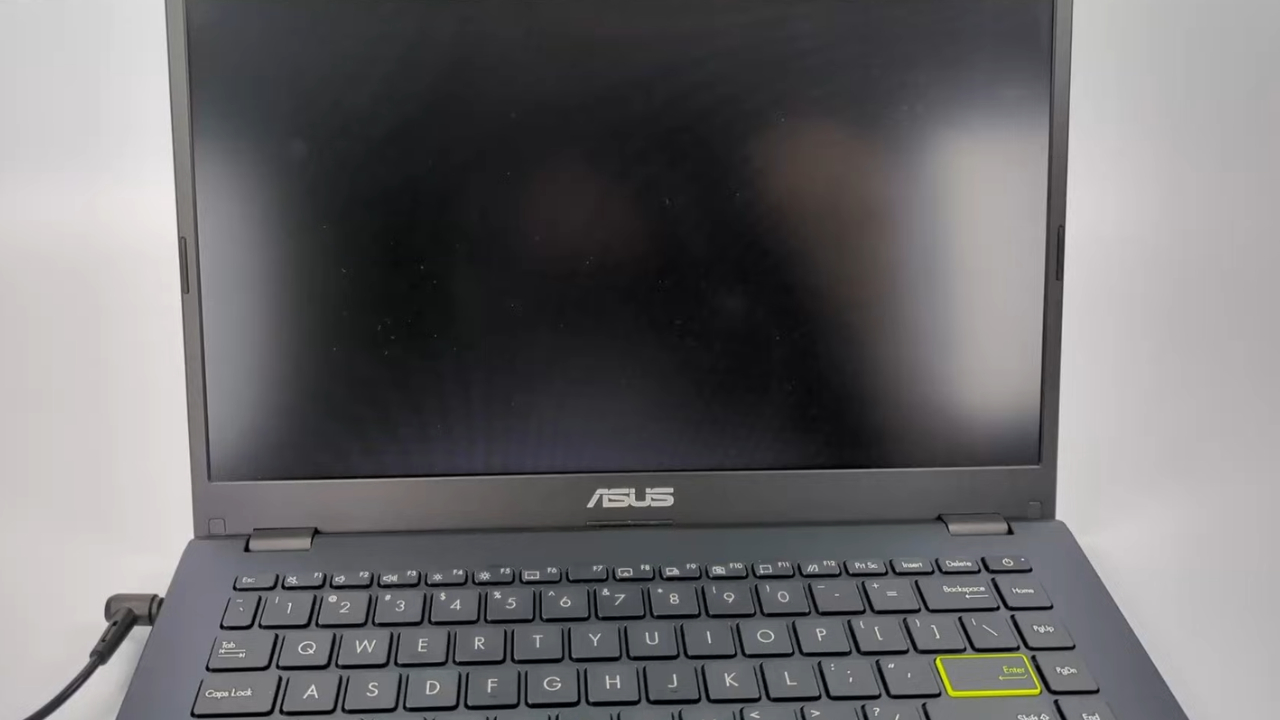
Plenty of black laptop screen cases turn out to be a display mode problem. Windows can send the picture to the second display only, leaving the built-in panel dark.
- Press Windows + P. Pick PC screen only or Duplicate, since Second screen only switches the laptop screen off on purpose.
- Restart the graphics driver. Windows + Ctrl + Shift + B resets it. Beep or flicker confirms the reset.
- Raise the brightness. A panel set to its lowest level can look completely off.
- Force a restart. Hold the power button for about 20 seconds, then restart with external displays unplugged.
If any of those bring the picture back, the hardware is fine. A stuck driver or the wrong projection mode caused the blackout.
Two Tests That Separate the Backlight From the Panel
With settings ruled out, a flashlight does more diagnostic work than most software. Turn the laptop on, let it reach the desktop, and shine a bright light at an angle onto the black screen.
Faint icons or a visible taskbar mean the LCD is forming an image but nothing is lighting it. That points to the backlight or the circuit that powers it. A panel that stays completely dark under the light suggests the signal is not arriving at all.
Next, watch the laptop screen during startup. A manufacturer logo or BIOS menu there means the hardware works and Windows is responsible.
Dell laptops also offer an LCD built-in self-test, started by holding the D key while pressing the power button. Clean color screens during that test indicate a healthy panel, according to Dell.
Matching Laptop Screen Symptoms to the Likely Fault
Most cases fall into a handful of patterns. Each row pairs a symptom with its usual cause.
| What you notice | Most likely cause | Usual fix |
| Faint image visible under a flashlight | Backlight or its circuit | Panel or board repair |
| Picture returns at certain lid angles | Worn display cable at the hinge | Cable replacement |
| Logo appears, then black in Windows | Graphics driver or display setting | Driver rollback or reinstall |
| Lines, blotches, or spreading dark patches | Damaged LCD panel | Panel replacement |
| No image at all, even at startup | Panel, connector, or motherboard circuit | Professional diagnosis |
The hinge pattern deserves extra attention. The display cable flexes every time the lid opens, and years of movement can crack its conductors. A cable usually costs far less than a panel, so rule it out before accepting a replacement quote.
Running the Laptop as a Desktop for Now
View this post on Instagram
If everything else about the laptop is healthy, using it as a small desktop while you decide on repairs is reasonable. An external monitor, keyboard, and mouse turn it into a usable workstation.
- Set Windows + P to Second screen only, so windows do not open on a laptop screen you cannot see.
- In Control Panel, open Power Options and set the lid action to Do nothing while plugged in.
- Keep the vents unobstructed, since a closed laptop pushed against a wall has less room to exhaust heat.
A closed lid does not guarantee an idle machine, either. We explained separately how a laptop can keep working in the background during sleep, which matters when it lives under a monitor all day.
Can the Built-In Screen Become a Monitor on Its Own?
When a laptop dies completely, the panel in the lid often still works, and people want it as a second monitor. Its HDMI port will not help, because unless the manual lists an HDMI input, laptop video ports only send a signal out.
Windows does offer Projecting to this PC, but Microsoft requires the Wireless Display feature to be installed and running on the receiving machine. A dead laptop cannot receive anything. The workable route is a controller board that accepts HDMI and drives the bare panel, matched to the model number on the back of that laptop screen.
Did you know? Older LCDs lit by cold-cathode fluorescent lamps contain small amounts of mercury. The German Institute for Occupational Safety and Health warns that broken lamps can release mercury vapor, so leave those panels intact.
When a Laptop Screen Repair Is Worth the Money
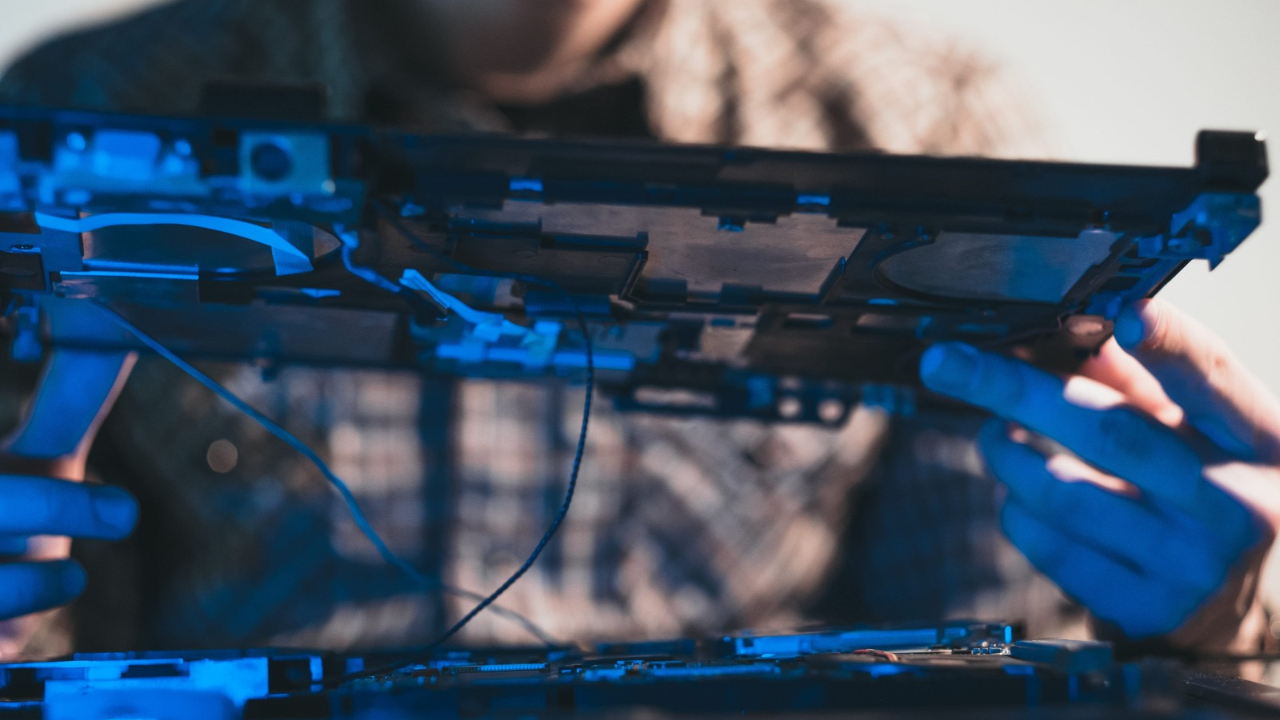
Our view is straightforward. On a laptop a few years old with a healthy battery, SSD, and keyboard, a cable or panel repair is usually money well spent, because the expensive parts already work.
The math changes on an older machine. If the battery is worn, the hinges are loose, and the processor struggles with current software, a new display fixes only one of several aging parts. Our look at how long laptops last and what fails first helps judge how much life the rest of the computer has left.
One safety point applies either way. The display assembly sits close to battery power, so any repair starts with the laptop shut down and unplugged. Anyone uncomfortable disconnecting the internal battery should leave the job to a repair shop.
What to Check Before Paying for a New Screen
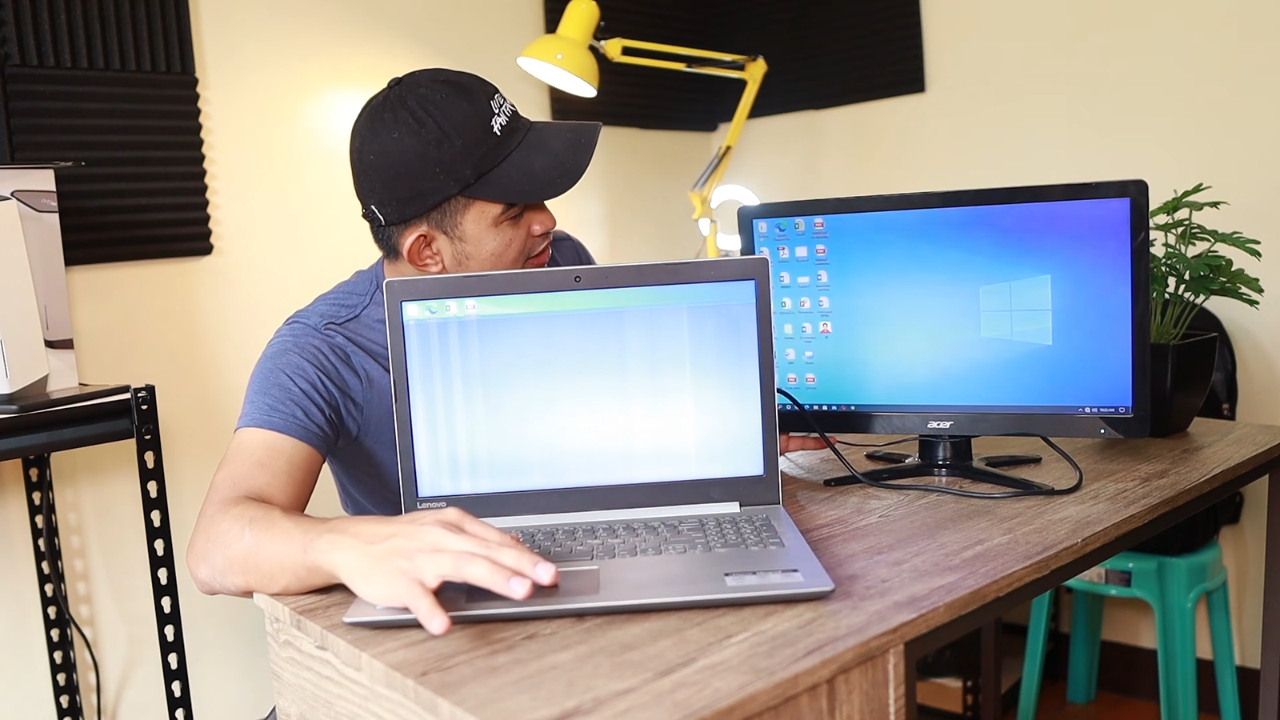
Start with the free steps, in order. Press Windows + P, reset the graphics driver, raise the brightness, and watch whether a logo appears at startup. Then grab a flashlight and look for a faint image on the dark laptop screen.
A few minutes of that usually reveals whether you face a setting, a backlight, a cable, or the panel itself, which is exactly what a repair shop will ask about. Meanwhile, the external monitor that exposed the problem can keep the laptop productive until the repair, or until you decide the machine has earned its retirement.