The spiral notebook where I log every laptop that friends and relatives hand me has a recurring phrase in the margins. “Fan sounds angry.” Most of those complaints ended the same way, with a gray layer of dust where cool air should have been moving.
Knowing how to clean a laptop fan is easy. Doing it without snapping a blade, cracking a ribbon cable, or frosting the motherboard with canned air takes more care.
I have watched people do more damage with ten minutes of enthusiasm than a year of dust ever did. Below is the routine I follow, starting with the gentlest option.
Signs Your Laptop Fan Needs Cleaning
View this post on Instagram
A busy fan is not automatically a dirty fan. If the fan stays active after you close the lid, background activity during sleep may explain the heat better than dust.
Apple explains that its fans speed up during demanding work and that soft surfaces like a bed or your lap make the fans run more. I always move the laptop onto a desk first and watch it for a day.
Dust becomes the likely suspect when several of the following show up during light work.
- The fan ramps up while you only browse or type a document.
- The keyboard deck gets uncomfortably warm during video calls.
- Performance drops after ten or fifteen minutes of steady work.
- You hear grinding, whining, or ticking, which Microsoft lists as abnormal sounds a healthy fan should never make.
Grinding usually means a worn bearing rather than dust. Cleaning will not cure it. A loud fan during light tasks also belongs among the early warning signs of an aging laptop.
Why Dust Makes a Laptop Run Hot
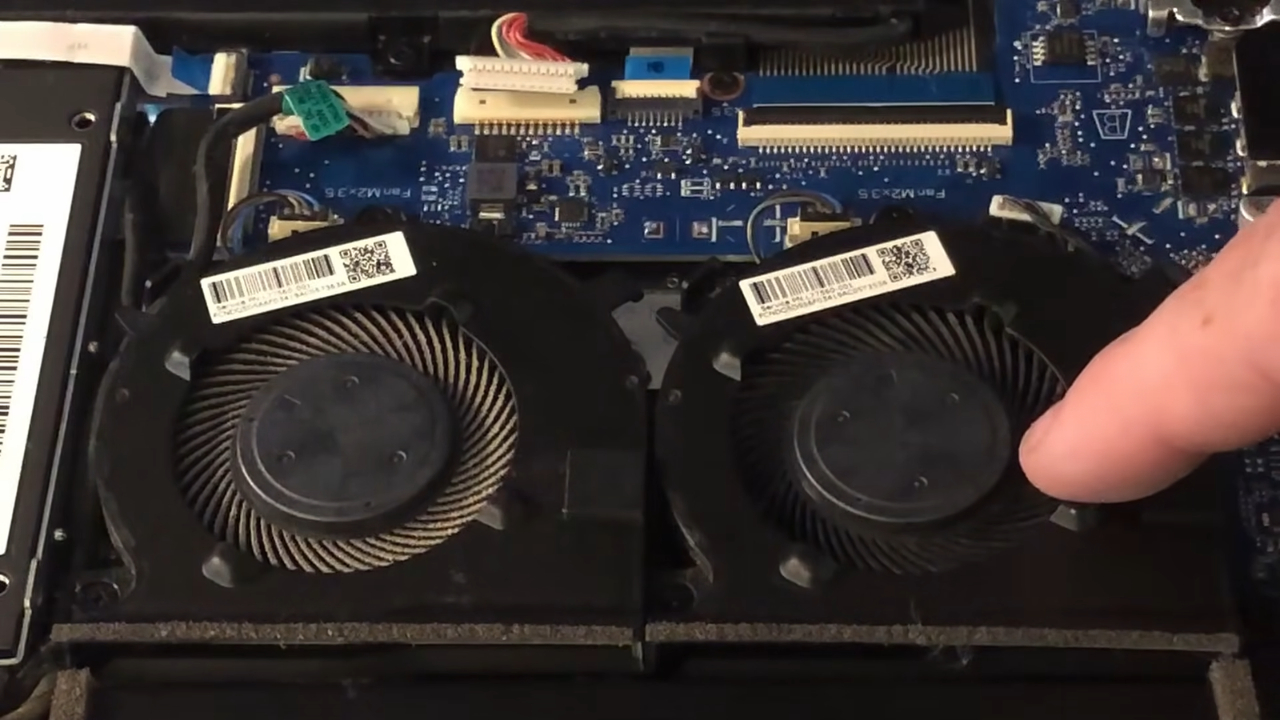
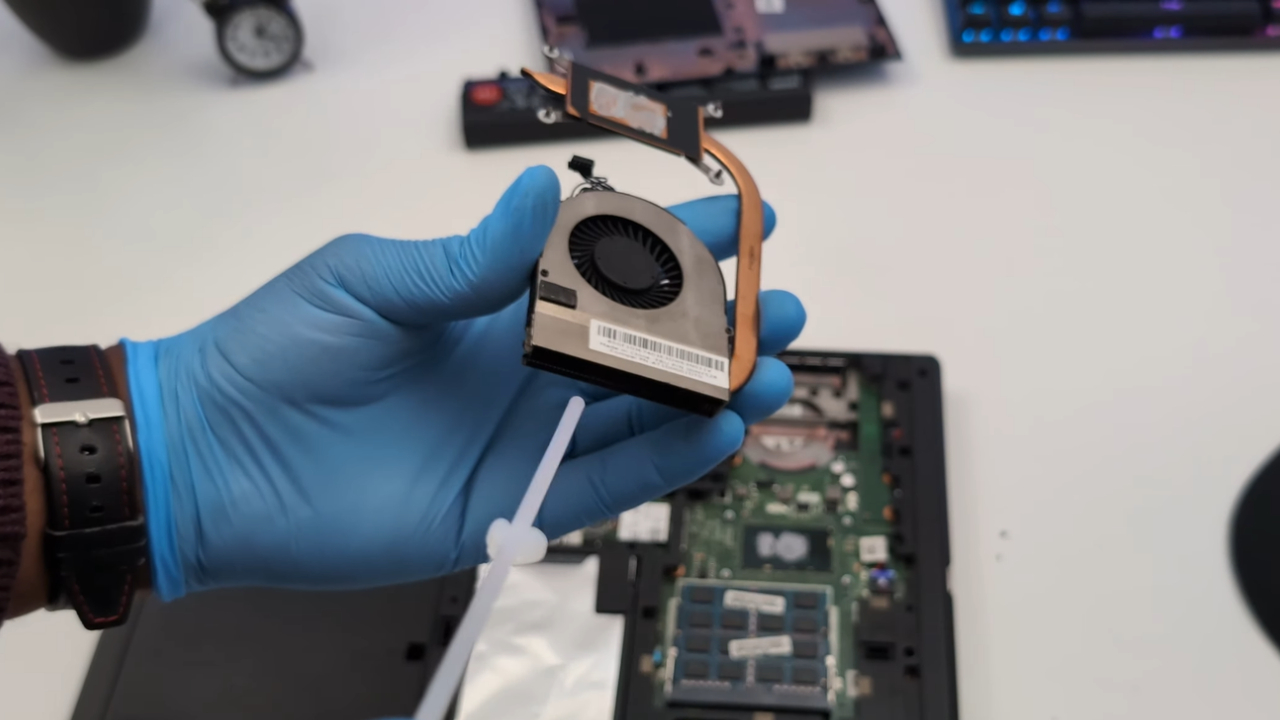
A laptop fan pulls air across a block of thin metal fins attached to a heat pipe. Moving air carries the processor heat out through the vent. Dust collects on the intake side of those fins and slowly forms a felt mat that blocks the airflow.
The fan spins faster to compensate, which explains the extra noise. Eventually, the chip runs hot enough to protect itself by slowing down.
Intel sets the point at which its processors begin throttling, called Tjunction max, at roughly 212 to 230 degrees Fahrenheit (100 to 110 degrees Celsius). Intel also states that overheating damage to the processor itself is unlikely because the chip throttles and then shuts down first.
A dusty fan mostly costs you speed and comfort rather than an instant dead processor. The battery is a different story, because sustained heat permanently reduces battery capacity.
What You Need Before You Start
My kit for fan work fits in a shoebox. Every item earned its place after I tried to improvise without it. The table below lists what I use, why it matters, and the common substitute that causes trouble.
| Tool | Why It Helps | Avoid Instead |
| Canned air for electronics | Short, controlled bursts loosen dust | Shop air compressors with moist air |
| Wooden toothpick or plastic spudger | Holds the fan still without scratching | Metal screwdrivers near the board |
| Soft brush | Lifts dust from fins and blades | Stiff paintbrushes that shed bristles |
| Precision screwdriver set | Fits small laptop screws without stripping | Kitchen drawer screwdrivers |
| Small tray or egg carton | Keeps screws sorted by location | A pile on the desk |
Skip the household vacuum. Vacuum nozzles can build static, and strong suction can also spin the fan far faster than it was designed to turn.
Cleaning a Laptop Fan Without Opening It
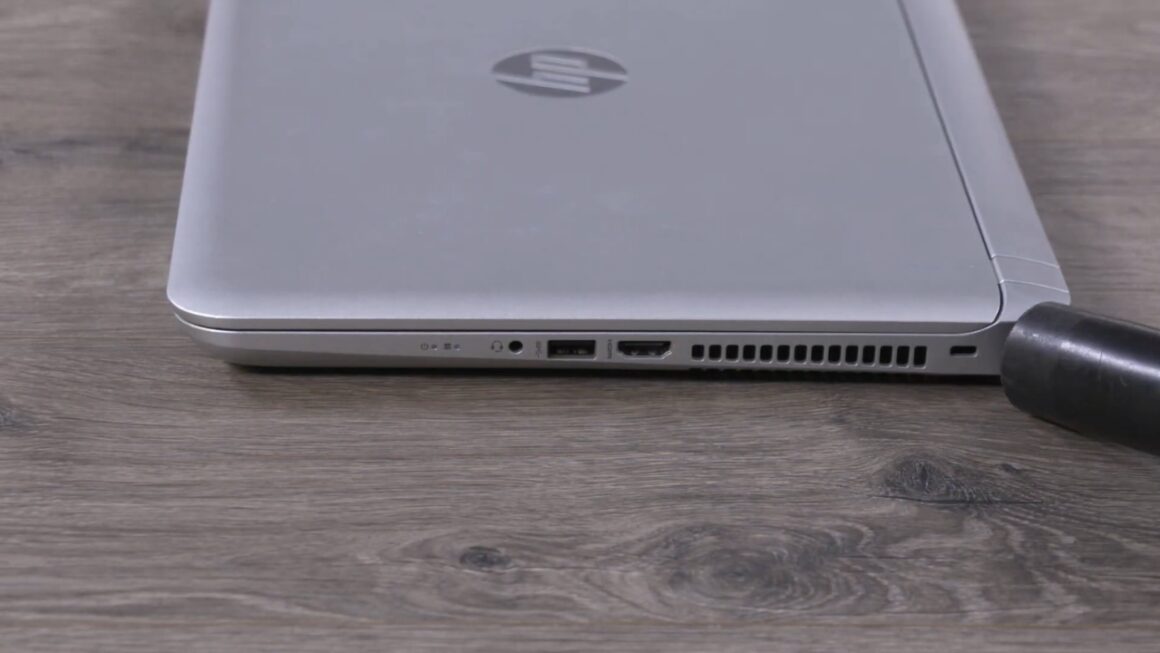
Start from the outside. Most of my relatives never need more. Shut the laptop down completely rather than putting it to sleep, unplug the charger, and work near an open window.
- Find the intake vents, usually on the bottom, and the exhaust vent on the side or back.
- Hold the can upright and spray in bursts of one second or less, keeping the nozzle a few inches away.
- Aim so the dust leaves the case. Sony advises angling the air away from the computer so you do not push dust deeper inside.
- Blow through the exhaust vent from the outside last, which pushes loose clumps off the fins.
- Wipe the vent grilles with a dry cotton swab.
External cleaning has a ceiling. When dust has packed into a solid mat against the fins, outside air may only rearrange it.
Hold the Fan Still Every Time
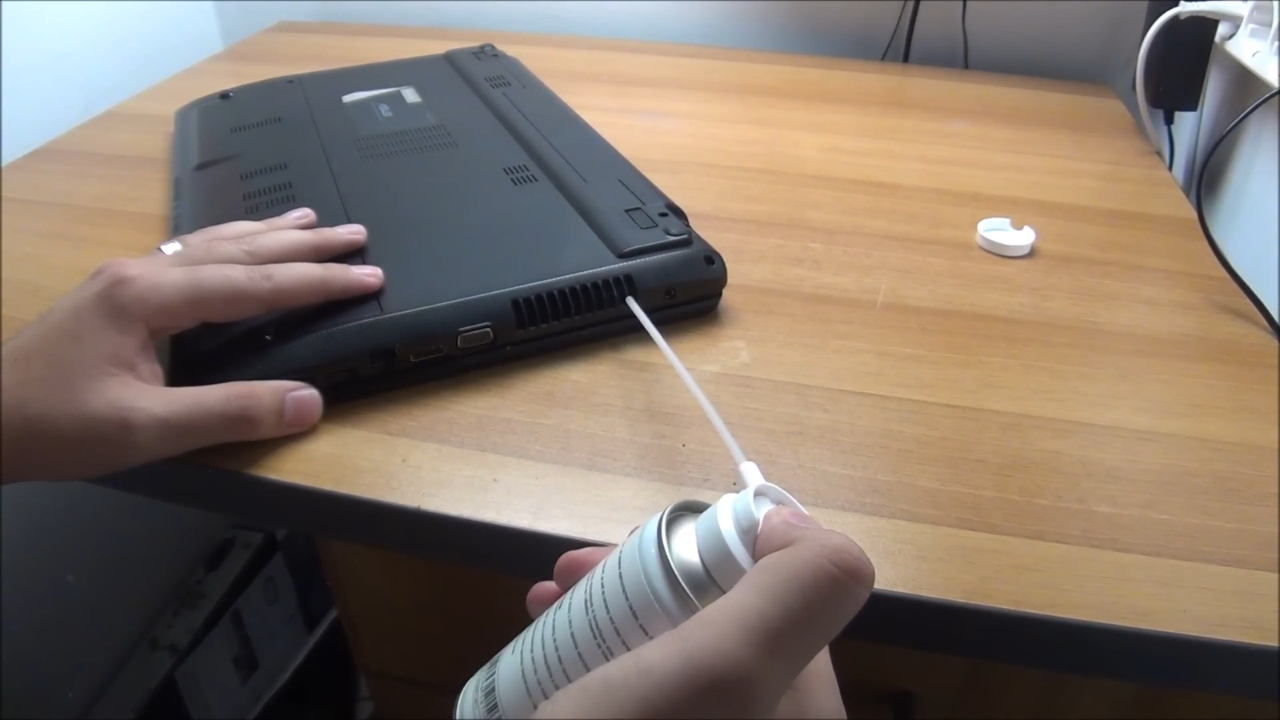
The first time I aimed canned air at a bare laptop fan, it spun up with a whine like a dentist drill. A toothpick has lived in my kit ever since. Pressed lightly against a blade, it stops the fan from freewheeling.
Repair technicians give two reasons for the habit. Bearings are built for the fan’s normal speed, and a blast of air can push the blades well beyond it. A spinning fan motor also acts as a small generator. I could not find a manufacturer document that proves this voltage damages a laptop, so treat it as a precaution, not a confirmed fact.
Did you know? Canned air is not air. Most cans hold a gas compressed into liquid, and a Washington education agency warns that tilting the can can release liquid that causes frostbite, while some propellants are highly flammable.
Opening the Bottom Panel Safely
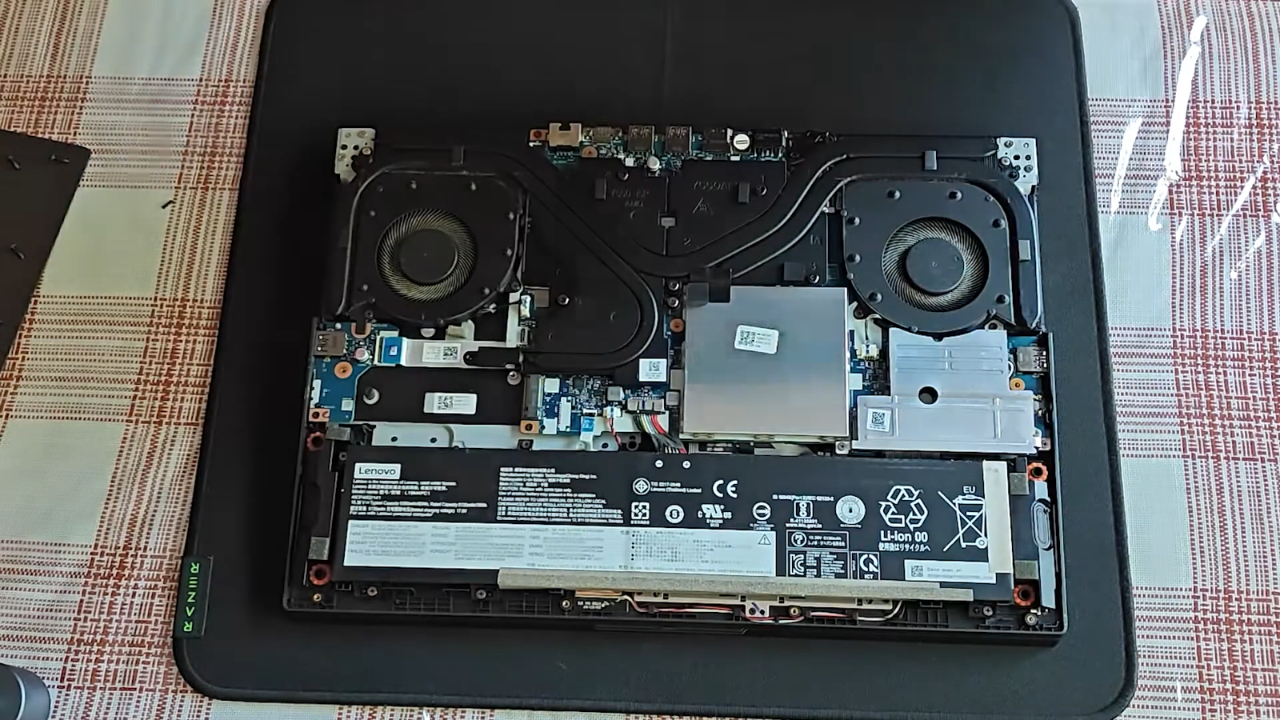
If the fan still roars after an external cleaning, the dust is probably packed inside. The panel comes off easily on many Windows laptops, but thin models often hide screws under rubber feet or use clips that crack easily. Look up a teardown guide for your exact model first.
- Shut down, unplug, and disconnect the battery connector if the guide shows how.
- Take a photo of the panel and sort the screws by position, since lengths often differ.
- Touch a bare metal surface to discharge static before you reach inside.
- Pry with plastic tools, never a metal blade.
- Hold the fan still, brush the blades, and lift the dust mat off the fins.
- Finish with short air bursts, then refit the panel without overtightening the screws.
Stop if a clip resists, since forcing it can split the case.
Does Opening a Laptop Void the Warranty?
Manufacturers say different things. Sony’s own fan cleaning page states that opening a notebook case will void the warranty. Federal regulators see blanket rules like that differently.
In April 2018, FTC staff warned six companies that conditioning warranty coverage on unbroken seals or authorized service generally violates the Magnuson-Moss Warranty Act. In July 2024, the agency sent letters to three PC hardware makers, ASRock, Gigabyte, and Zotac, over “warranty void if removed” stickers placed where they hinder routine maintenance.
Those were warning letters, not court rulings. A manufacturer can still refuse to cover damage you cause, such as a torn cable. If your laptop is under warranty and the fan grinds, a free repair beats a home fix. The FTC position applies in the United States only.
How Often to Clean a Laptop Fan
No single schedule fits every home. Dell suggests cleaning every three to six months, while older guides recommend a check every couple of months for heavy users. Your environment matters more than the calendar.
Environment
External Cleaning
Look Inside
Office desk, no pets
Every 6 months
Every 2 to 3 years
Home with pets or carpet
Every 3 months
Once a year
Gaming laptop under heavy load
Every 3 months
Once a year
Workshop, farm, or construction site
Monthly
Every 6 months
The intervals above are my own working schedule rather than manufacturer rules. Pet hair is the biggest wild card. My aunt’s laptop shared a couch with a golden retriever, and the intake looked like a lint trap after a single winter.
What I Write in the Notebook After a Cleaning
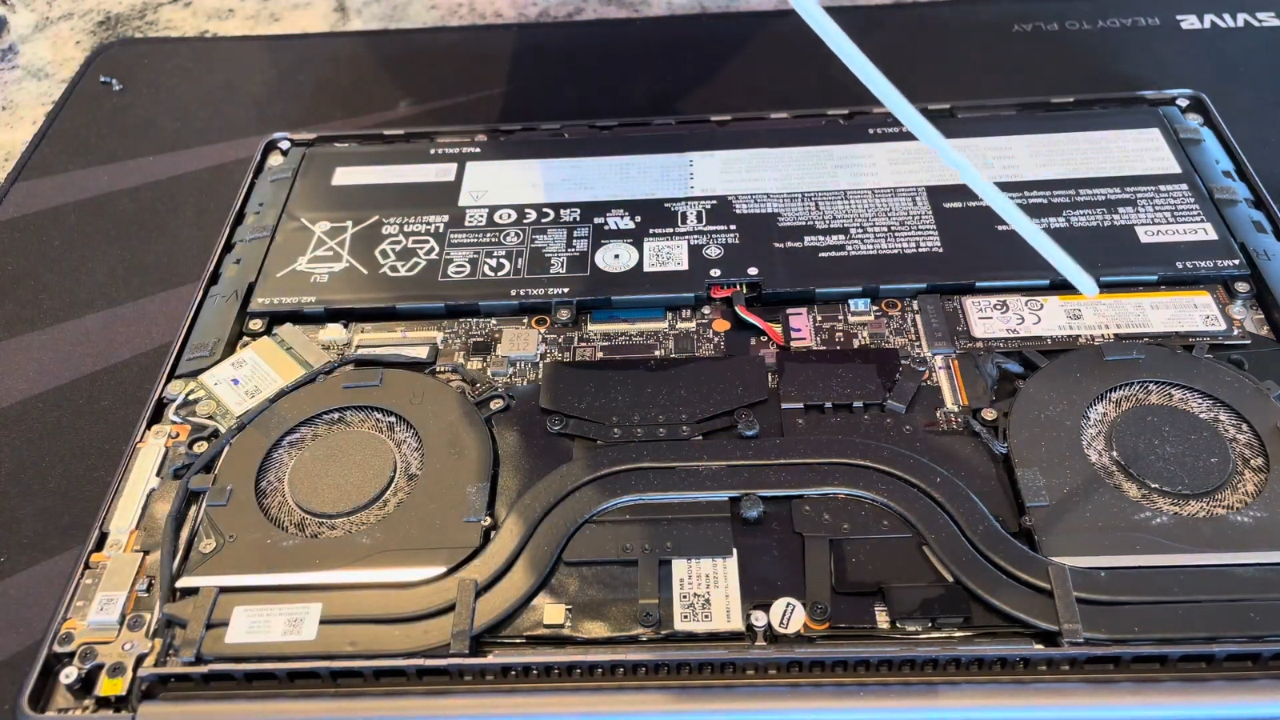
Every fan cleaning gets a line in my spiral notebook, with the date and whether the fan stopped making noise afterward. If the same laptop comes back loud within three months, that home needs the shorter schedule from the table above.
You should move your laptop to a hard desk, listen to the fan during light work, and give the vents a few one-second bursts with the can upright and the fan held still. Open the panel only if the noise returns within days.
If the fan grinds instead of whooshing, you’ll need a new fan, and if your laptop is still under warranty, let the manufacturer handle it. Don’t touch a single screw yourself.