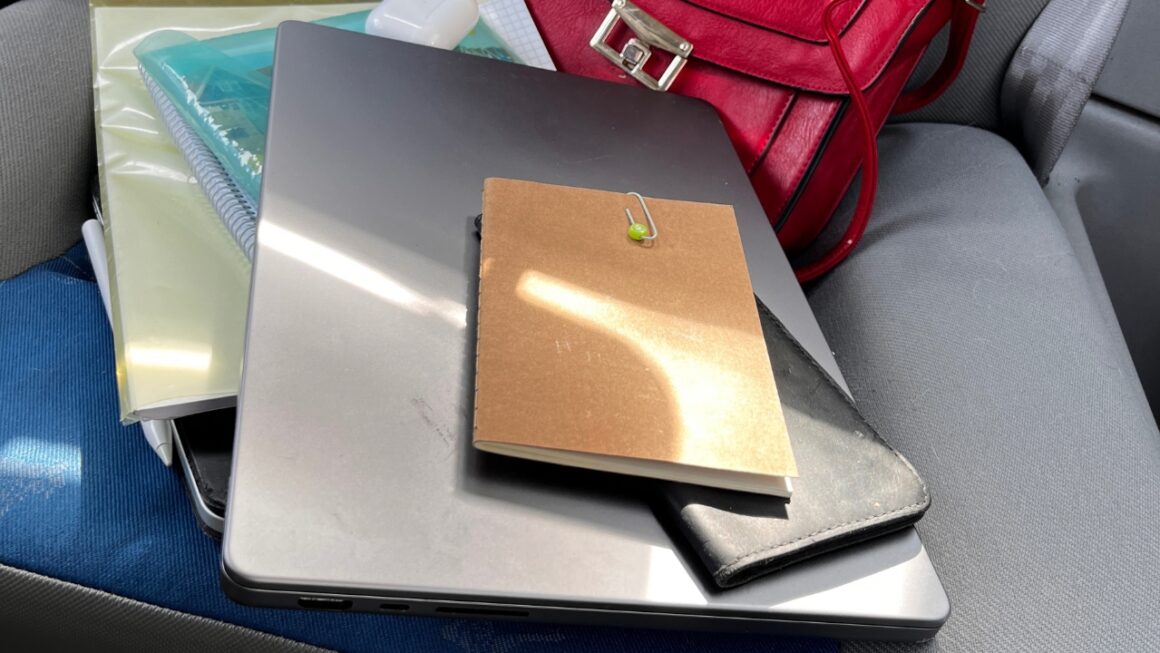
Last November, I drove three hours to my parents for Thanksgiving with my laptop asleep in a backpack in the trunk. When I pulled it out, the bottom felt like a plate fresh from the dishwasher, and the battery had fallen from 92 percent to 79 percent.
Nothing had crashed. The laptop had simply kept working in the dark, then given up and hibernated somewhere along the highway.
On most recent Windows laptops, sleep is not a full stop. The processor wakes in short bursts to check networks, sync files, and fetch updates, and one misbehaving app can keep it busy for hours.
Sleep Stopped Meaning Off Years Ago

Older laptops used a sleep state called S3. Nearly everything powered down, the memory stayed in self-refresh to hold your open work, and the processor did nothing until you lifted the lid.
Most laptops sold in recent years use a different design. Microsoft describes Modern Standby as a smartphone-style instant-on mode in which Windows and the hardware keep listening for network packets, key presses, and maintenance work.
Modern Standby, also called S0 low power idle, never switches the system fully off. The chip sits in its lowest running state and briefly wakes parts of the hardware for real tasks before dropping back to idle.
You usually cannot choose between the two. Microsoft says switching from Modern Standby to S3 through a BIOS setting is not supported without a complete reinstall of Windows, so the decision was made at the factory.
What a Sleeping Windows Laptop Still Does
Microsoft keeps a list of events allowed to wake a Modern Standby system. Some turn the screen on, such as the power button or a key press. Many wake the processor quietly and leave the display dark, which is why you never see them happen.
The quiet group includes the following.
- Windows Update scanning for, downloading, and installing updates
- Background sync and network operations from apps
- Wi-Fi, mobile broadband, and Bluetooth radio activity
- Audio playback and Bluetooth notifications
- Thermal events, battery level changes, and the battery finishing a charge
Each wake is supposed to last a moment. Trouble starts when one of them never really ends, because a stuck process or chatty driver keeps the processor out of its deepest idle state for the rest of the night.
Why a Sleeping Laptop Can Overheat in a Bag
Here is where things get slightly nerdy. Windows measures how much of a standby session the chip spends in its lowest power state, a figure Microsoft calls DRIPS. In the common problems Microsoft documents, a weak Wi-Fi signal or busy email app kept the wireless adapter awake for long stretches.
On a desk, a few watts of stray activity simply warms the room a little. Zipped inside a padded backpack, the same heat has nowhere to go, and it soaks into the battery.
Heat speeds up the chemical reactions that age lithium-ion cells, the same reason a hot car can damage a laptop battery. In one Microsoft Q&A thread from May 2025, a Windows 11 owner reported a laptop overheating and draining while asleep with the lid closed. Change the lid action to Hibernate – that will solve it.
Windows Has a Safety Net, but It Has Limits
Modern Standby laptops include adaptive hibernate, on by default and active only on battery power. It watches how fast standby drains the battery and hibernates the laptop once drain goes over budget.
| Default setting | Value | What it means |
| Grace period | 15 minutes | No hibernation right after sleep begins |
| Standby budget | 5 percent | Battery drain allowed per interval |
| Budget interval | 12 hours | How long each budget lasts |
| Budget refreshes | 4 | Fresh budgets a well-behaved laptop can earn |
I ran the numbers for my own laptop, which has a 56 Wh battery. Five percent is 2.8 watt-hours spread over 12 hours, an average draw of about 0.23 watts, so anything hungrier eventually triggers hibernation. Manufacturers can adjust the budget.
Microsoft is also testing a revised policy. Insider release notes from July 31, 2026 describe less hibernation above 80 percent battery and earlier hibernation below 10 percent. It is still a preview.
How I Found What Kept My Laptop Awake
Back in the kitchen where I grew up, I ran a sleep study. The report showed the Wi-Fi adapter active for most of the session, along with a photo backup app still uploading about 900 pictures from the 65th birthday party we threw for my dad.
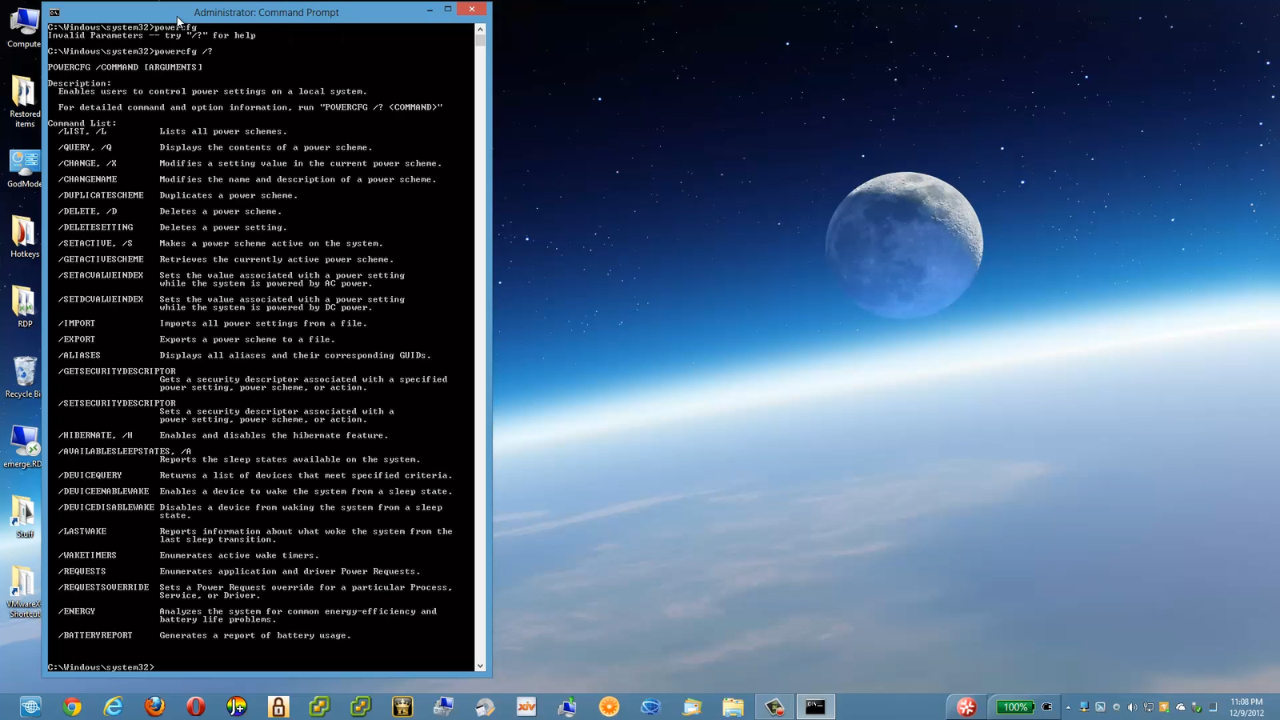
Microsoft documents every command I used on its powercfg reference page. Open Command Prompt as an administrator and try them in this order.
- powercfg /a lists your sleep states. Seeing S0 Low Power Idle means Modern Standby.
- powercfg /sleepstudy saves an HTML report covering the last three days of standby.
- powercfg /lastwake shows what woke the laptop most recently.
- powercfg /waketimers lists scheduled wakes.
- powercfg /requests names apps and drivers blocking sleep.
I set the backup app to sync only while the laptop is awake and plugged in, and the sleep study the following night looked clean.
Macs and Linux Laptops Nap Too
Apple calls its version Power Nap. On battery, a sleeping Mac laptop checks Mail and updates Calendar and other iCloud events. Plugged in, it also downloads software updates and runs Time Machine backups.
View this post on Instagram
My girlfriend Priya teaches high school chemistry and closes her MacBook Air every Friday afternoon without a second thought. If weekend drain ever bothers her, the setting lives under System Settings, Battery, Options.
Linux offers two common sleep modes. The kernel documentation on sleep states describes suspend-to-idle, a lighter mode similar to Modern Standby, and deep suspend-to-RAM, which maps to S3.
Did you know? You can see which mode a Linux laptop uses by reading the file /sys/power/mem_sleep in a terminal. The active mode appears in square brackets, and on some laptops the firmware makes suspend-to-idle the default even when deep sleep is available.
When to Use Sleep, Hibernate, or Shut Down
My own split looks like this:
- Sleep is fine for lunch, meetings, and overnight on a desk, especially with the charger connected.
- Hibernate before the laptop goes into a bag, a car, or an overhead bin. You can set the lid to hibernate in the Power Options page of Control Panel.
- Shut down before storing a laptop for days or when sleep keeps misbehaving even after you have fixed the obvious culprits.
If standby drain has gone unnoticed for months, a Windows 11 battery report will show whether the battery has lost capacity.
Check Your Laptop Tonight
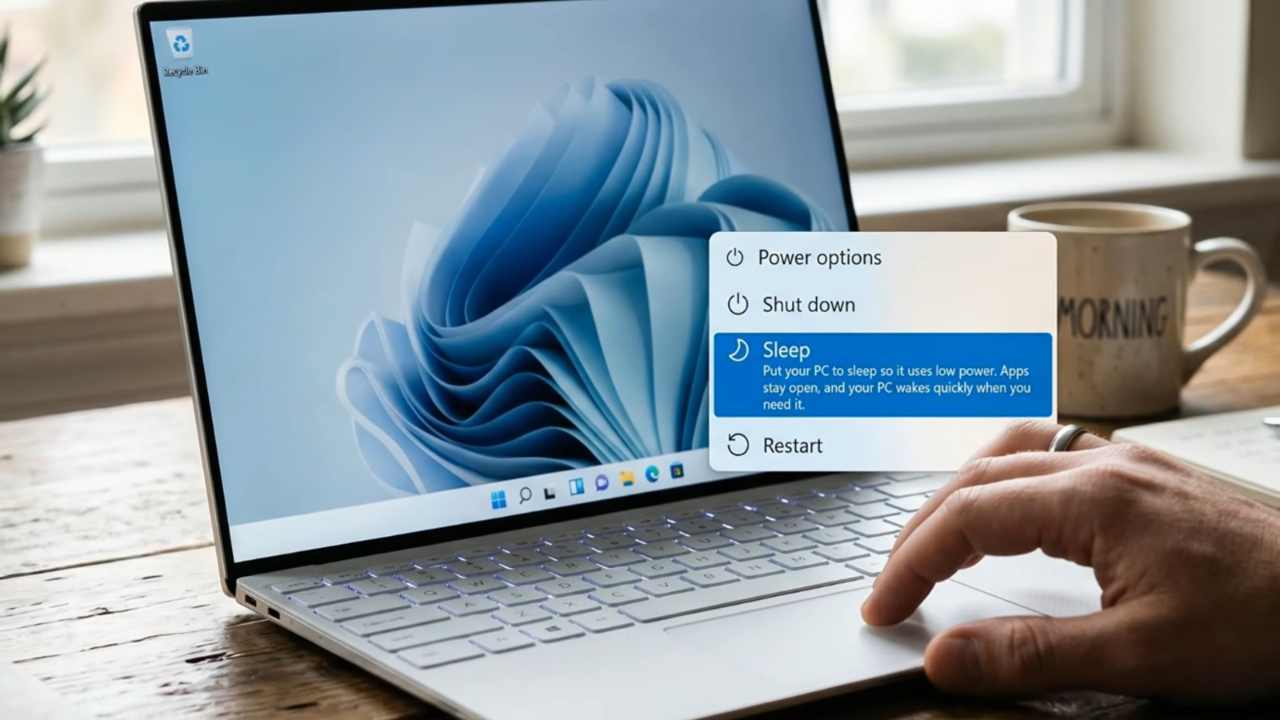
Since that Thanksgiving drive, I press Hibernate before my laptop goes into a bag, and the habit takes about two seconds. The drive back to my apartment that Sunday ended with the battery at the same percentage it started.
Tonight, open Command Prompt and type powercfg /a. If the result mentions S0 Low Power Idle, your laptop keeps working while it sleeps.
Run powercfg /sleepstudy tomorrow morning and look for anything active for most of the night. Whatever tops that list is what has been warming your bag, and usually it is an app you can tame in its own settings.