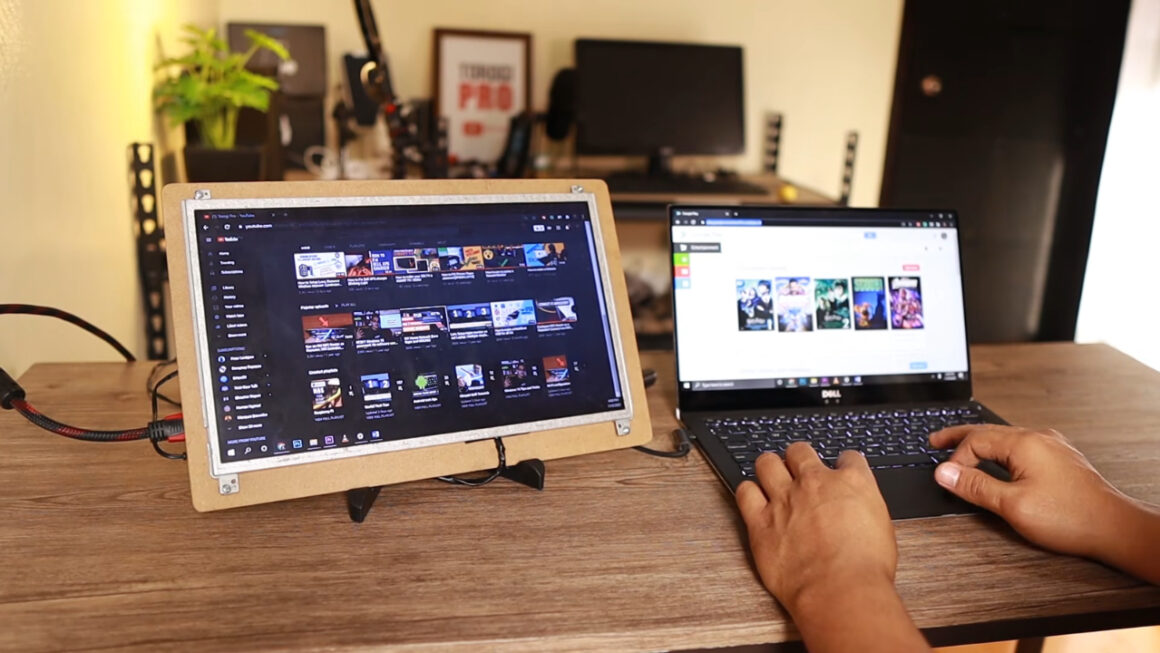
A single laptop screen runs out of room fast. With a spreadsheet, a video call, and a chat open at once, most people spend more time dragging windows than working.
A screen extender clips one or two extra panels onto the lid and solves that without a desk monitor.
I look at these gadgets the way I look at every laptop on my desk, from the hinge and the USB-C port outward.
Extra screens add weight to a lid that was never designed to carry it, and they draw power from a battery I already check far too often. Those details shaped this list.
If your laptop screen is black rather than too small, check if an external monitor still works before you spend money on new hardware.
The 4 Screen Extenders at a Glance
Start with the Laptop Fit column, because an extender that cannot clamp onto your lid is useless, however sharp its panels are. Weight comes next, since it hangs on your hinge.
| Model | Added Screens | Resolution | Weight | Laptop Fit | Price (Oct. 2026) | Best For |
| Mobile Pixels Trio 3 Pro | 2 × 14.1 in | 2240 × 1400 | 4.13 lb | 15 to 16 in | $433.49 | Spreadsheets, coding |
| Xebec Tri-Screen 3 | 2 × 13.3 in | 1920 × 1080 | 3.6 lb | 13 to 18 in | $699 | Frequent travelers |
| UPERFECT UStation Z 14 | 2 × 14 in | 2240 × 1400 | 3.39 lb | 12.8 to 17.7 in wide | $389.99 | Sharp screens on a budget |
| Mobile Pixels Duex Max DS | 1 × 14.1 in | 1920 × 1080 | 1.8 lb | Not listed | $229.49 | Light setups, gaming side screen |
Prices are the sale or list prices I found on October 14, 2026, and they move often; check them before buying.
1. Mobile Pixels Trio 3 Pro, Best for Sharp Text

The Trio 3 Pro adds two 14.1-inch panels at 2240 × 1400, a higher resolution than the 1080p screens most extenders use. Mobile Pixels lists a single USB-C cable for both screens, 65W pass-through charging, and a built-in kickstand.
- Noticeably sharper text for spreadsheets and code
- Kickstand takes some weight off the hinge
- Pass-through charging frees a port
- At 4.13 pounds, the heaviest pick here
- Built for 15- and 16-inch laptops only
My advice is to treat it as a desk setup that travels occasionally, not an everyday carry. For gamers, the sharp side panels suit guides and stream chat rather than the game itself.
The product page says no drivers are needed, yet a buyer review mentions installing one, so keep the Mobile Pixels driver page bookmarked.
2. Xebec Tri-Screen 3, Best for Frequent Travelers
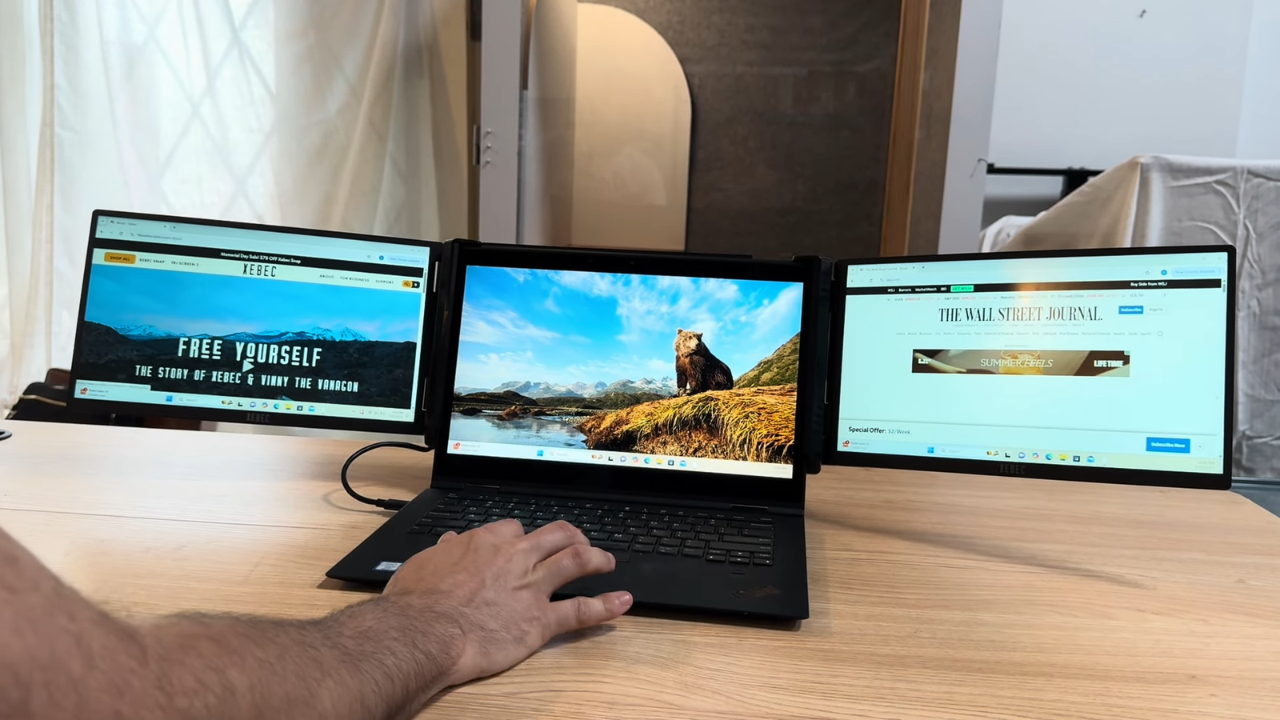
Xebec announced the Tri-Screen 3 with two 13.3-inch Full HD screens and a 3.6-pound aluminum frame. The company launched it at a $699 list price and claims an industry-first single-cable design.
- Fits laptops from 13 to 18 inches
- Embedded USB-C cable with 60W pass-through charging
- Screens rotate 270 degrees for presentations
- Padded travel case included
- The most expensive option by a wide margin
- Mac users need an extra adapter
An independent Serious Insights review found that MacBooks need the separately sold Mac adapter, listed at $99, because Apple does not support the multi-stream feature the single cable depends on.
I would recommend it to consultants and sales staff who work from hotel desks every week. For gaming, it is a weak value, since you pay a premium for travel features a gamer at home will not use.
3. UPERFECT UStation Z 14, Best Value for Sharp Screens
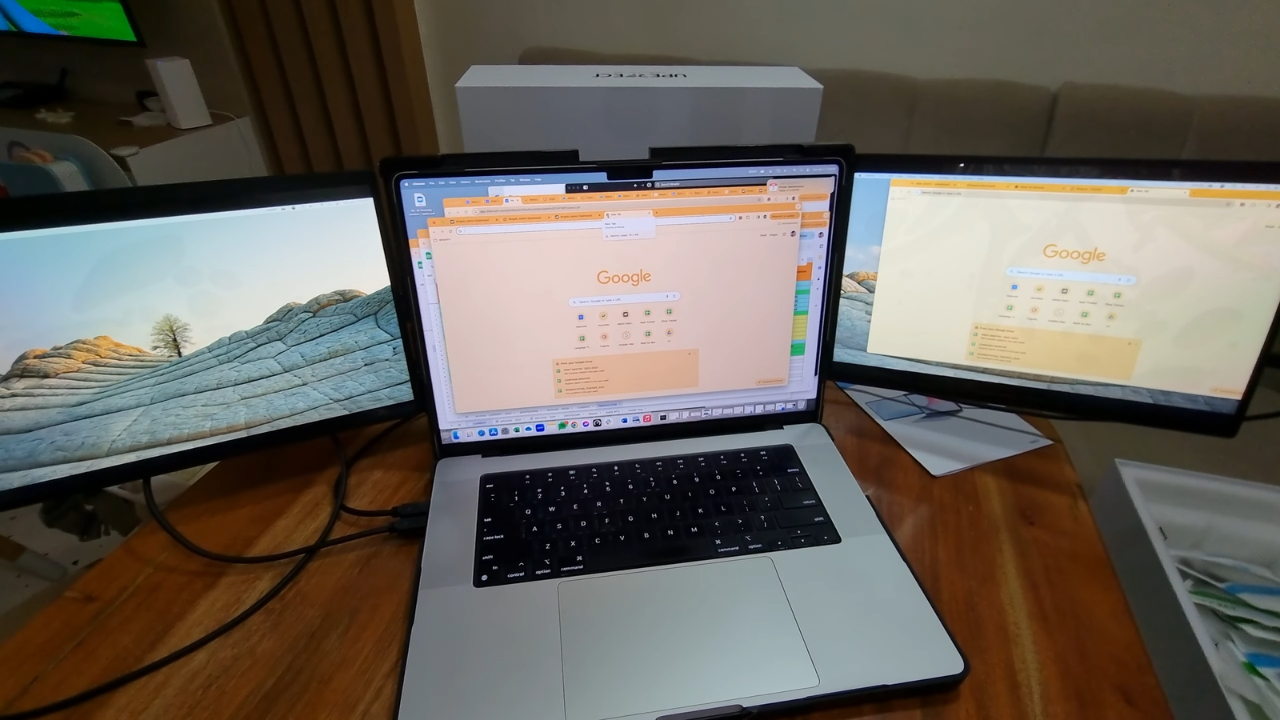
UPERFECT matches the Trio 3 Pro on resolution for less money. Each 14-inch panel runs at 2240 × 1400 in a 16:10 shape, which adds vertical space for documents. The listing quotes 300 nits of brightness and a 60Hz refresh rate.
- Sharp 16:10 panels at $389.99
- Fits laptops from about 12.8 to 17.7 inches wide
- USB-C and mini HDMI inputs for older machines
- Conflicting driver instructions on the product page
- Requires a lid at least 8.66 inches tall
- Weighs 3.39 pounds
Measure your lid before ordering, because the height requirement rules out some compact 13-inch laptops. I would pick this one for a home office where the laptop rarely leaves the desk.
Gamers on a budget get two sharp side screens for chat and maps, which is more than most need.
4. Mobile Pixels Duex Max DS, Best Lightweight Pick
View this post on Instagram
The Duex Max DS adds one 14.1-inch 1080p screen that slides out from behind the lid. Mobile Pixels lists 300 nits, 60Hz, a 1.8-pound weight, and a 4.5-watt power draw from the laptop.
- Less than half the weight of the triple-screen models
- No drivers, with USB-C and mini HDMI inputs
- Only one extra screen
- Magnetic mounting plates stick to your lid
- Laptop size range not published
At 1.8 pounds, it is the one extender here I would leave clipped on all week. A single-side screen covers most of what people actually do, which is a call on one display and notes on the other.
The 13.3-inch Duex Plus DS costs $195.49 and weighs 1.3 pounds if you want something lighter. For gaming, the Duex Max makes an easy home for Discord or a map.
MacBook Owners Should Check Their Chip First
A two-screen extender needs a laptop that can drive two external displays. Many Windows laptops handle that over one USB-C port, but older MacBook Air models cannot.
The MacBook Air with M1 supports one external display. Apple says M3 models can run two external displays only with the lid closed, which defeats the purpose of a lid-mounted extender.
MacBook Air models with M4 and M5 chips support two external displays alongside the built-in screen.
The new MacBook Air (M5) quietly improves external display support, allowing multiple high-resolution monitors without closing the lid. Earlier Apple silicon Air models required clamshell mode for dual displays, but the M5 architecture allows users to run a full laptop setup. https://t.co/rLMqO2ejqO
— Austin MacWorks (@austinmacworks) April 20, 2026
On older Macs, the workaround is a DisplayLink adapter, which uses driver software from Synaptics to add displays over USB. It works, but it means another adapter, another install, and another thing to update.
If your MacBook Air uses an M1, M2, or M3 chip, the single-screen Duex Max avoids the problem entirely.
Weight, Hinges, and Battery Drain
Clip-on screens hang their weight on the lid, and lids pivot on two small hinges. In my repair notebook, loose or cracked hinges are among the most common entries, which is why I wrote about which laptop parts wear out first. Before buying, I check three things.
- A kickstand. The Trio 3 Pro and the Xebec both use one, so the frame rests on the desk instead of pulling on the hinge.
- Pass-through charging. Plug the charger into the extender when you can, so the screens do not run on battery alone.
- Power draw. The Duex Max uses 4.5 watts. My own estimate is that on a typical 50 watt-hour battery, it costs roughly 9 percent of the charge every hour.
Can You Game on a Screen Extender?
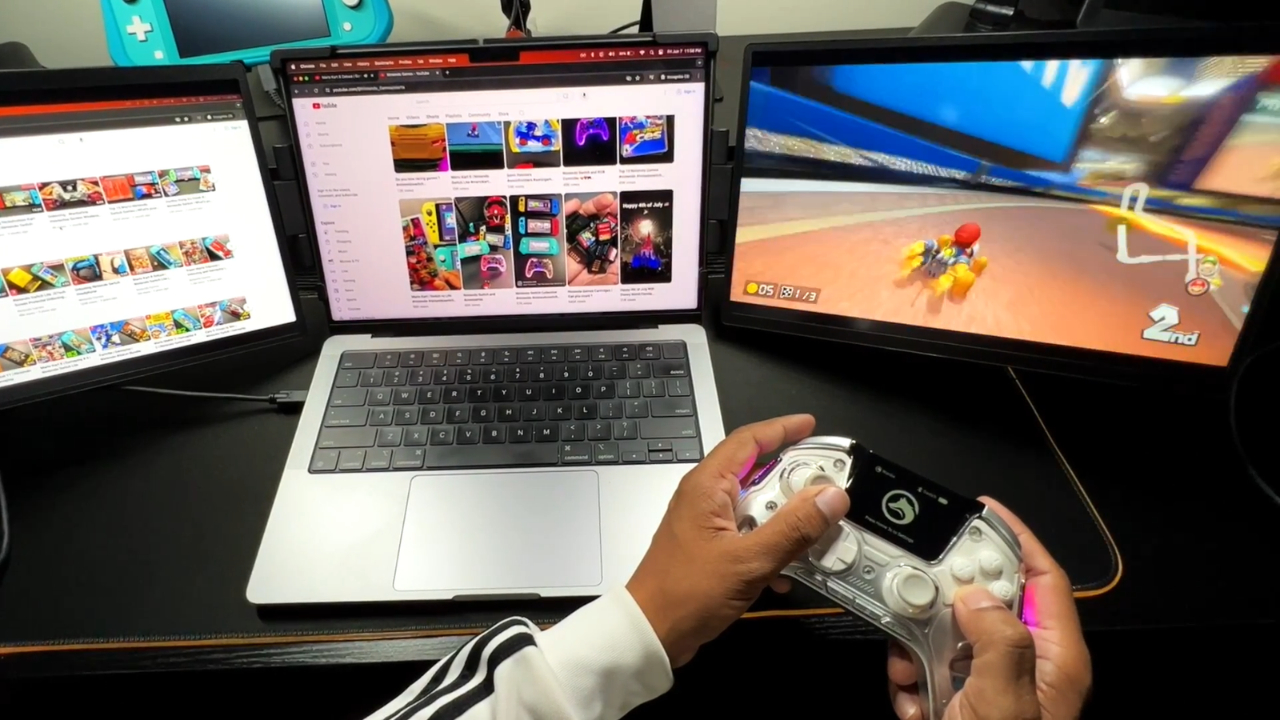
Yes, but as a side screen rather than your main display. UPERFECT, Mobile Pixels, and the Serious Insights review of the Xebec all list 60Hz for these panels, which is fine for chat and guides but slower than the high refresh rates gamers usually want.
Mobile Pixels does not publish a refresh rate for the Trio 3 Pro.
Did you know? A few stacked extenders now reach 120Hz, such as the 18.5-inch Virzen triple-screen model. They stand on their own kickstand rather than clipping onto the lid, and the Virzen sells for about $695.99.
For most gamers, the better plan is to keep the game on the laptop screen and move Discord, stream chat, or a build guide to the extender.
Which One I Would Buy for My Own Desk
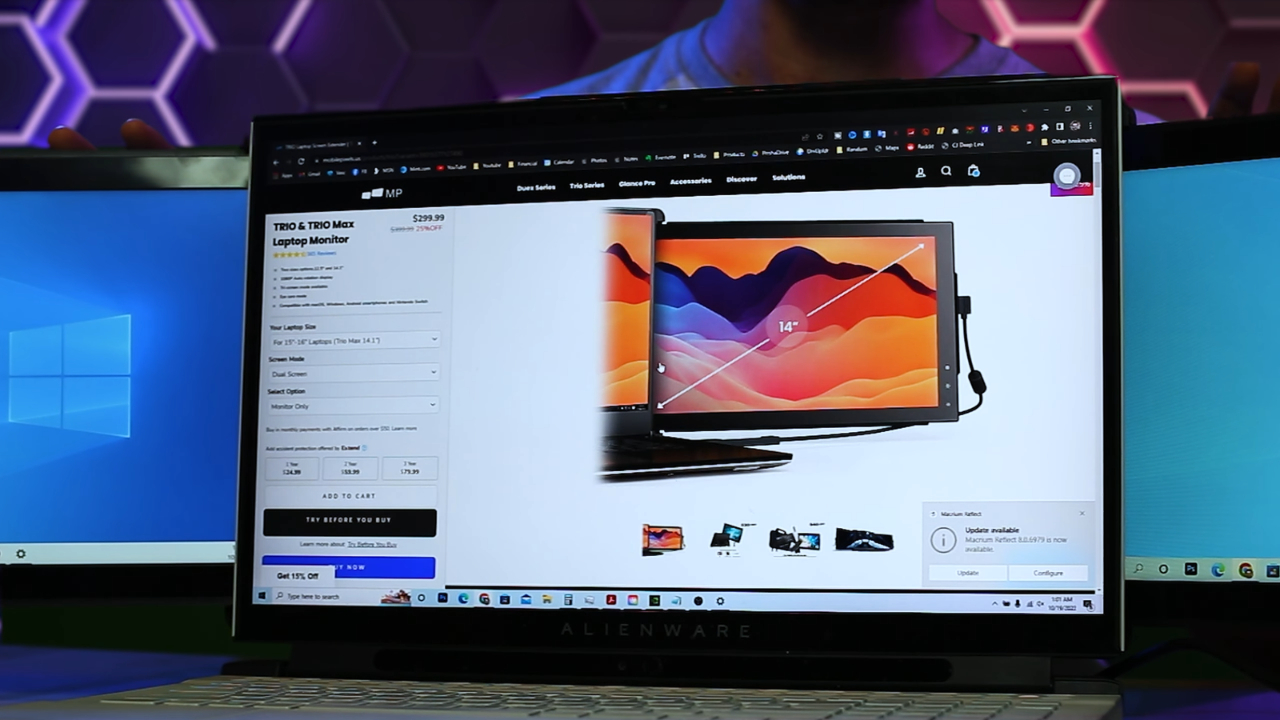
For my own 15-inch laptop, I would buy the Trio 3 Pro, because sharper text matters more to me than saving a pound. Someone on an older MacBook Air should buy the Duex Max DS and skip the adapter puzzle entirely. If you travel weekly and the budget allows, the Xebec Tri-Screen 3 justifies its price with its build and case.
Before you order any of them, measure your lid height and width, check your chip or USB-C port for display support, and plan to plug the charger into the extender rather than the laptop.